# How to use AI to create your  first picture book

<figure><img src="https://3477754308-files.gitbook.io/~/files/v0/b/gitbook-x-prod.appspot.com/o/spaces%2FzsZfoBvZYXkMl9uNhUAM%2Fuploads%2F17GNNM98yfEYHjmL34DF%2Fimage.png?alt=media&#x26;token=06aff8b6-6854-4fa3-958e-86a71775115b" alt=""><figcaption></figcaption></figure>

How can we use AI to create a complete children's picture book on the Readkidz platform?

**Step 1: Create a project**

① Find the <mark style="color:purple;">**AI Generate**</mark> button on the homepage and click it directly to enter story creation

② Click on the <mark style="color:purple;">**AI Generate**</mark> option in the left navigation bar to enter the creation page

<figure><img src="https://3477754308-files.gitbook.io/~/files/v0/b/gitbook-x-prod.appspot.com/o/spaces%2FzsZfoBvZYXkMl9uNhUAM%2Fuploads%2F31QxmRezIoiXVKRn4CNY%2Fimage.png?alt=media&#x26;token=bbc3f9b2-da92-4cd2-af12-f16732ff7c4d" alt=""><figcaption><p>ReadKidz Getting Started Tutorial</p></figcaption></figure>

**Step 2: Story Generation**

1、Set the picture book parameters according to the content of the children's picture book you want to create: <mark style="color:purple;">**target age group, story type, story style, whether to use personification, and picture book size**</mark>

<figure><img src="https://3477754308-files.gitbook.io/~/files/v0/b/gitbook-x-prod.appspot.com/o/spaces%2FzsZfoBvZYXkMl9uNhUAM%2Fuploads%2FFwF0Oj81T4KUJXaBPFLl%2Fimage.png?alt=media&#x26;token=e0c84eed-494e-4f35-bfa0-265697b83efe" alt=""><figcaption><p>ReadKidz Getting Started Tutorial</p></figcaption></figure>

2、Input story theme

① <mark style="color:purple;">**Enter your story theme**</mark> in the text box and click the AI Generate button to create a story (<mark style="color:red;">**note: do not exceed 300 characters!**</mark>)

<figure><img src="https://3477754308-files.gitbook.io/~/files/v0/b/gitbook-x-prod.appspot.com/o/spaces%2FzsZfoBvZYXkMl9uNhUAM%2Fuploads%2F59CiLYNtqme6SSnnPFir%2Fimage.png?alt=media&#x26;token=bddb16fb-5943-427f-a3f5-a074966829fa" alt=""><figcaption><p>ReadKidz Getting Started Tutorial</p></figcaption></figure>

② <mark style="color:purple;">**Use the example copy provided by the platform**</mark> for creation!

<figure><img src="https://3477754308-files.gitbook.io/~/files/v0/b/gitbook-x-prod.appspot.com/o/spaces%2FzsZfoBvZYXkMl9uNhUAM%2Fuploads%2F75Nu2tCm8EnX2vOdUcLb%2Fimage.png?alt=media&#x26;token=949ba094-05f8-488a-9eb3-6b24b1716854" alt=""><figcaption><p>ReadKidz Getting Started Tutorial</p></figcaption></figure>

③ Click the <mark style="color:purple;">**AI assistant**</mark> in the upper right corner to generate a story theme!

<figure><img src="https://3477754308-files.gitbook.io/~/files/v0/b/gitbook-x-prod.appspot.com/o/spaces%2FzsZfoBvZYXkMl9uNhUAM%2Fuploads%2FZvp0eXd6utpfXuDump1k%2Fimage.png?alt=media&#x26;token=7634d18a-3319-4483-98e2-2620952d279b" alt=""><figcaption><p>ReadKidz Getting Started Tutorial</p></figcaption></figure>

<figure><img src="https://3477754308-files.gitbook.io/~/files/v0/b/gitbook-x-prod.appspot.com/o/spaces%2FzsZfoBvZYXkMl9uNhUAM%2Fuploads%2FHo6b60piU5DdeL1gW1b3%2Fimage.png?alt=media&#x26;token=d7f7ddd6-56d7-486f-895f-52b3fa5e7d8b" alt=""><figcaption><p>ReadKidz Getting Started Tutorial</p></figcaption></figure>

**Step 3: Parse the role**

After the story generation is completed, we can review <mark style="color:purple;">**the original story in the left original story section**</mark>, check if we are satisfied with it. If there are places that are not very satisfactory, we can directly <mark style="color:purple;">**edit and modify**</mark> them. If we are not satisfied with the generated story, we can <mark style="color:purple;">**click the arrow to return**</mark> to the previous step and generate a new story.

<figure><img src="https://3477754308-files.gitbook.io/~/files/v0/b/gitbook-x-prod.appspot.com/o/spaces%2FzsZfoBvZYXkMl9uNhUAM%2Fuploads%2F0zaRbnunCZ8Z8bMjZPTZ%2Fimage.png?alt=media&#x26;token=eaa2b401-3d20-4909-b1f2-225119d906c8" alt=""><figcaption><p>ReadKidz Getting Started Tutorial</p></figcaption></figure>

After confirming that the original story text is correct, click "<mark style="color:purple;">**Extract role**</mark>" to parse the roles. For the first parsing, a pop-up prompt will appear. For roles with issues, there will be corresponding error reminders. You can <mark style="color:purple;">**modify**</mark> them in the role list. If you don't need pop-up reminders, you can <mark style="color:purple;">**check the option to not display**</mark> them again and click confirm!

<figure><img src="https://3477754308-files.gitbook.io/~/files/v0/b/gitbook-x-prod.appspot.com/o/spaces%2FzsZfoBvZYXkMl9uNhUAM%2Fuploads%2FqdPRUrZC3MuhVdQLAdrp%2Fimage.png?alt=media&#x26;token=b5b48b46-2031-40b3-972d-86ce49695583" alt=""><figcaption><p>ReadKidz Getting Started Tutorial</p></figcaption></figure>

Review the story characters in the list of character information on the right, check if there are any missing. If there are any missing, you can click "<mark style="color:purple;">**Extract Role**</mark>" to re-analyze; if the character information is incorrect, you can click "<mark style="color:purple;">**recovery**</mark>" to regenerate it. After confirming the character, click "<mark style="color:purple;">**confirm role**</mark>"! (<mark style="color:red;">**Please note that after confirming the character information, you cannot return to modify it.**</mark>)

<figure><img src="https://3477754308-files.gitbook.io/~/files/v0/b/gitbook-x-prod.appspot.com/o/spaces%2FzsZfoBvZYXkMl9uNhUAM%2Fuploads%2FCux1WZS2VIREQCq47rUn%2Fimage.png?alt=media&#x26;token=a35c2f04-cee2-4b2b-a73e-d2194388d38f" alt=""><figcaption><p>ReadKidz Getting Started Tutorial</p></figcaption></figure>

**Step 4: Choose style**

After confirming the character, we need to <mark style="color:purple;">**choose a style**</mark><mark style="color:purple;">.</mark> The platform currently <mark style="color:purple;">**includes over 100 styles**</mark>. Select the style you want and proceed to the next step!

<figure><img src="https://3477754308-files.gitbook.io/~/files/v0/b/gitbook-x-prod.appspot.com/o/spaces%2FzsZfoBvZYXkMl9uNhUAM%2Fuploads%2FKwDfp8XbdeLMEZ04c7cj%2Fimage.png?alt=media&#x26;token=ca93bf1c-4b35-4c9c-8d06-51bf3a77c8ce" alt=""><figcaption><p>ReadKidz Getting Started Tutorial</p></figcaption></figure>

**Step 5: Character Profile**

After confirming the style, we need to <mark style="color:purple;">**create character portraits**</mark>!

① Check if any characters are missing from the role list!

<figure><img src="https://3477754308-files.gitbook.io/~/files/v0/b/gitbook-x-prod.appspot.com/o/spaces%2FzsZfoBvZYXkMl9uNhUAM%2Fuploads%2FQMcyBeZr7xa289CgMf8a%2Fimage.png?alt=media&#x26;token=68f86661-59e6-42a2-ad29-73eeabad7dbb" alt=""><figcaption><p>ReadKidz Getting Started Tutorial</p></figcaption></figure>

② Click the small pencil on the right side of the character, <mark style="color:purple;">**enter the character information editing page**</mark>!

<figure><img src="https://3477754308-files.gitbook.io/~/files/v0/b/gitbook-x-prod.appspot.com/o/spaces%2FzsZfoBvZYXkMl9uNhUAM%2Fuploads%2FAqUTzrd9kX4dgcHF0k0H%2Fimage.png?alt=media&#x26;token=e847b5b6-bdf7-4c38-a52b-dbba65ba0d9f" alt=""><figcaption><p>ReadKidz Getting Started Tutorial</p></figcaption></figure>

③ On the character information editing page, <mark style="color:purple;">**corresponding character information**</mark> will be displayed according to the character type. Please write the character information in the following format! (<mark style="color:red;">**Please note: If there is clothing information on the animal character information editing page, please be sure to delete all clothing information!**</mark>)

Human：

a. Character skin color (<mark style="color:purple;">**required**</mark>)

b. Character hairstyle (<mark style="color:purple;">**required**</mark>)

c. Character facial features (<mark style="color:purple;">**required**</mark>)

d. Character accessories (<mark style="color:purple;">**try not to fill in**</mark>)

e. Character clothing (<mark style="color:purple;">**required for human characters, not required for animal characters**</mark>)

Animal：

a. Character skin color (<mark style="color:purple;">**required**</mark>)

b. Character facial features (<mark style="color:purple;">**required**</mark>)

④ You can directly <mark style="color:purple;">**modify the keywords**</mark>. If you add new keywords, please be sure to click the Enter key and add them within the specified number of characters, otherwise they will not take effect! After the modification is completed, please remember to click "<mark style="color:purple;">**confirm**</mark>" to save!

<figure><img src="https://3477754308-files.gitbook.io/~/files/v0/b/gitbook-x-prod.appspot.com/o/spaces%2FzsZfoBvZYXkMl9uNhUAM%2Fuploads%2FRf2EXHBNrhoaGvvgvCUK%2Fimage.png?alt=media&#x26;token=6c02d011-26d2-4280-accf-e51b0dafe04a" alt=""><figcaption><p>ReadKidz Getting Started Tutorial</p></figcaption></figure>

AI image will generate four pictures at a time. <mark style="color:purple;">**Choose the one that best matches the character description**</mark>!

<figure><img src="https://3477754308-files.gitbook.io/~/files/v0/b/gitbook-x-prod.appspot.com/o/spaces%2FzsZfoBvZYXkMl9uNhUAM%2Fuploads%2FavJGuYS5lt3HIm6LepFO%2Fimage.png?alt=media&#x26;token=4eba531e-63ca-4755-871c-ef842ef03e7b" alt=""><figcaption><p>ReadKidz Getting Started Tutorial</p></figcaption></figure>

<mark style="color:red;">**Please note that you must ensure that each character has a single character portrait, otherwise you will not be able to proceed to the next step!**</mark>

⑤ If you are not satisfied with the character portrait generated by the selected style, you can click on the style selection page to <mark style="color:purple;">**re-select a style**</mark>! After confirming the style, please make sure that all character portraits are of the same style! And ensure that each character has a <mark style="color:purple;">**character portrait**</mark> before proceeding to the next step! (<mark style="color:red;">**Please note that once you click to proceed to the next step, you cannot regenerate the character portraits!**</mark>)

<figure><img src="https://3477754308-files.gitbook.io/~/files/v0/b/gitbook-x-prod.appspot.com/o/spaces%2FzsZfoBvZYXkMl9uNhUAM%2Fuploads%2FcOQhG3Nm7s5cCTrYkjMK%2Fimage.png?alt=media&#x26;token=eff198fc-ef4e-4a7f-8907-2cb27fecc4d5" alt=""><figcaption><p>ReadKidz Getting Started Tutorial</p></figcaption></figure>

<figure><img src="https://3477754308-files.gitbook.io/~/files/v0/b/gitbook-x-prod.appspot.com/o/spaces%2FzsZfoBvZYXkMl9uNhUAM%2Fuploads%2F9Gwmnolfp8nzxIt6mMiJ%2Fimage.png?alt=media&#x26;token=af57415f-318d-4dff-a18f-4f8ec6bfa2ad" alt=""><figcaption><p>ReadKidz Getting Started Tutorial</p></figcaption></figure>

**Step 6: Edit subtitles**

The subtitle editing page of the picture book system will write subtitles according to the original text content. On the left is the <mark style="color:red;">**story text**</mark>, and on the right is the picture <mark style="color:purple;">**book subtitle.**</mark>

<figure><img src="https://3477754308-files.gitbook.io/~/files/v0/b/gitbook-x-prod.appspot.com/o/spaces%2FzsZfoBvZYXkMl9uNhUAM%2Fuploads%2F6ECtUYE6umHyOC7SjfzY%2Fimage.png?alt=media&#x26;token=b75b54bb-7439-44eb-9622-75f3f36596f9" alt=""><figcaption><p>ReadKidz Getting Started Tutorial</p></figcaption></figure>

When reviewing subtitles, you can freely <mark style="color:purple;">**edit**</mark>, <mark style="color:purple;">**add**</mark>, and <mark style="color:purple;">**delete**</mark> them

①Edit subtitles

Click on the corresponding subtitles to edit.

<figure><img src="https://3477754308-files.gitbook.io/~/files/v0/b/gitbook-x-prod.appspot.com/o/spaces%2FzsZfoBvZYXkMl9uNhUAM%2Fuploads%2FDy0LJPlVEmJ2H1Fpsoec%2Fimage.png?alt=media&#x26;token=3d89b912-e407-4bdb-a8c0-7264b93e64f1" alt=""><figcaption><p>ReadKidz Getting Started Tutorial</p></figcaption></figure>

②Add new subtitle

Hover the mouse over the position where you need to <mark style="color:purple;">**add subtitles**</mark>, and a plus sign will appear. Click the plus sign to add new subtitles

<figure><img src="https://3477754308-files.gitbook.io/~/files/v0/b/gitbook-x-prod.appspot.com/o/spaces%2FzsZfoBvZYXkMl9uNhUAM%2Fuploads%2FTnNUXVFyDk6vIPivvXvY%2Fimage.png?alt=media&#x26;token=deab2004-32e7-4b3b-a67e-08be829b4f6d" alt=""><figcaption><p>ReadKidz Getting Started Tutorial</p></figcaption></figure>

③Delete subtitles

For subtitles that need to be deleted, hover the mouse over the <mark style="color:purple;">**corresponding subtitle**</mark>, and a delete icon will appear at the end of the subtitle

<figure><img src="https://3477754308-files.gitbook.io/~/files/v0/b/gitbook-x-prod.appspot.com/o/spaces%2FzsZfoBvZYXkMl9uNhUAM%2Fuploads%2FqeZRX8YsRlhgMfGbEVsx%2Fimage.png?alt=media&#x26;token=da617140-71cc-4f22-bcec-22d635563f55" alt=""><figcaption><p>ReadKidz Getting Started Tutorial</p></figcaption></figure>

<mark style="color:red;">**Please ensure that all subtitles are correct before proceeding to the next step. Once you proceed to the next step, the subtitles cannot be modified again**</mark>

**Step 7: Shot Page**

① Check if the <mark style="color:purple;">**number of pages**</mark> in the subtitle area reaches the specified <mark style="color:purple;">**number of subtitles**</mark>!

<figure><img src="https://3477754308-files.gitbook.io/~/files/v0/b/gitbook-x-prod.appspot.com/o/spaces%2FzsZfoBvZYXkMl9uNhUAM%2Fuploads%2FCUb4OjyiXqCH0ruxQSZN%2Fimage.png?alt=media&#x26;token=9ae7162e-f9d2-4881-9898-5189036c8dcc" alt=""><figcaption><p>ReadKidz Getting Started Tutorial</p></figcaption></figure>

② Check if the characters mentioned in the subtitle review have corresponding <mark style="color:purple;">**character portraits**</mark>!

<figure><img src="https://3477754308-files.gitbook.io/~/files/v0/b/gitbook-x-prod.appspot.com/o/spaces%2FzsZfoBvZYXkMl9uNhUAM%2Fuploads%2FnC4BzRjcazdCwndC7XGd%2Fimage.png?alt=media&#x26;token=ba424842-a96a-4576-9065-dec22bcb3afc" alt=""><figcaption><p>ReadKidz Getting Started Tutorial</p></figcaption></figure>

③ Click the "<mark style="color:purple;">**Edit**</mark>" button in the upper right corner of the canvas page subtitle to <mark style="color:purple;">**enter the prompt word editing page**</mark>!

<figure><img src="https://3477754308-files.gitbook.io/~/files/v0/b/gitbook-x-prod.appspot.com/o/spaces%2FzsZfoBvZYXkMl9uNhUAM%2Fuploads%2FmFusNy4XZAv7DMaVtl5g%2Fimage.png?alt=media&#x26;token=c5721bb5-fb7c-4fa4-8765-2c12a0af9163" alt=""><figcaption><p>ReadKidz Getting Started Tutorial</p></figcaption></figure>

④ Check if the content of the review keywords corresponds to the subtitles of the story, and whether <mark style="color:purple;">**the number of characters**</mark> described in the keywords corresponds to <mark style="color:purple;">**the character portraits**</mark>!

<figure><img src="https://3477754308-files.gitbook.io/~/files/v0/b/gitbook-x-prod.appspot.com/o/spaces%2FzsZfoBvZYXkMl9uNhUAM%2Fuploads%2FDcctPgHchEKxll7uUr8j%2Fimage.png?alt=media&#x26;token=9f9124db-76a7-4567-94c9-55b776dc0195" alt=""><figcaption><p>ReadKidz Getting Started Tutorial</p></figcaption></figure>

⑤ After the review is completed, click "<mark style="color:purple;">**Generate**</mark>" to create the image, if you are not satisfied with the generated image, you can click "Generate" again to <mark style="color:purple;">**regenerate**</mark>, or go to the prompt word editing page to <mark style="color:purple;">**adjust the drawing prompt words**</mark>!

<figure><img src="https://3477754308-files.gitbook.io/~/files/v0/b/gitbook-x-prod.appspot.com/o/spaces%2FzsZfoBvZYXkMl9uNhUAM%2Fuploads%2FCz5ftIbRUUofibvuvido%2Fimage.png?alt=media&#x26;token=5f4a659e-9a5e-4378-8a1c-e3f175cf5c3e" alt=""><figcaption><p>ReadKidz Getting Started Tutorial</p></figcaption></figure>

⑥ After all the illustrations on the pages have been generated and retrieved, click to proceed to the next step! (<mark style="color:red;">**Please note: If there is a page that has already generated four images and you have not retrieved any of them, you will not be able to proceed to the next step!**</mark>)

<figure><img src="https://3477754308-files.gitbook.io/~/files/v0/b/gitbook-x-prod.appspot.com/o/spaces%2FzsZfoBvZYXkMl9uNhUAM%2Fuploads%2FcsM8D96dYst7rnRNx48o%2Fimage.png?alt=media&#x26;token=32af366b-3986-4188-84d4-d5f408b15e93" alt=""><figcaption><p>ReadKidz Getting Started Tutorial</p></figcaption></figure>

**Step 8: Image Editing**

ReadKidz platform supports basic image editing features and can directly <mark style="color:purple;">**perform layout design**</mark> for picture books!

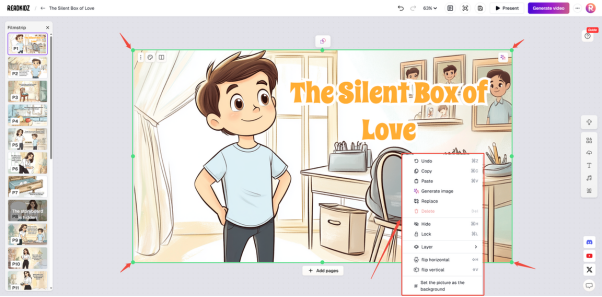
① Click the image, click the green dot on the green border of the image and hold it down to <mark style="color:purple;">**perform operations on the image's position and size**</mark>. Right-click on the image and select the corresponding options to perform the corresponding operations as well!

<figure><img src="https://3477754308-files.gitbook.io/~/files/v0/b/gitbook-x-prod.appspot.com/o/spaces%2FzsZfoBvZYXkMl9uNhUAM%2Fuploads%2FibXx70pA20VQgnn3Oebs%2Fimage.png?alt=media&#x26;token=c33e4764-f20a-44fe-a368-98e73d45e141" alt=""><figcaption><p>ReadKidz Getting Started Tutorial</p></figcaption></figure>

②If you think the layout of the image is still not creative enough, you can <mark style="color:purple;">**use the cropping tool in the editor**</mark>! The cropping tool contains different masks, and you can <mark style="color:purple;">**choose different shaped cropping masks**</mark> according to your needs to <mark style="color:purple;">**adjust the illustration shape**</mark>, making your picture book more creative!

<figure><img src="https://3477754308-files.gitbook.io/~/files/v0/b/gitbook-x-prod.appspot.com/o/spaces%2FzsZfoBvZYXkMl9uNhUAM%2Fuploads%2Fy4Sn2DVqT461mSZxiVUO%2Fimage.png?alt=media&#x26;token=40bf7e5b-ce8c-46f2-9a97-11c9f3d2fc7b" alt=""><figcaption><p>ReadKidz Getting Started Tutorial</p></figcaption></figure>

b. The crop area <mark style="color:purple;">**can be rotated**</mark>, <mark style="color:purple;">**adjusting the rotation angle can change the shape of the crop**</mark>! (<mark style="color:red;">**Please note: After the crop is completed, please remember to click "confirm", otherwise the crop is invalid!**</mark>)

<figure><img src="https://3477754308-files.gitbook.io/~/files/v0/b/gitbook-x-prod.appspot.com/o/spaces%2FzsZfoBvZYXkMl9uNhUAM%2Fuploads%2FXfda3UDSPctdIKBR8xg2%2Fimage.png?alt=media&#x26;token=453e69a3-a3fa-490a-b4db-1cd16815b2c1" alt=""><figcaption><p>ReadKidz Getting Started Tutorial</p></figcaption></figure>

c. After cropping, <mark style="color:purple;">**adjust the position of the cropped image**</mark> to make the scene more harmonious!

<figure><img src="https://3477754308-files.gitbook.io/~/files/v0/b/gitbook-x-prod.appspot.com/o/spaces%2FzsZfoBvZYXkMl9uNhUAM%2Fuploads%2FWi2A5u6IAIs6V9QlbIqu%2Fimage.png?alt=media&#x26;token=ee1eaa0a-3e3e-41f0-8994-4d7d0d1f609e" alt=""><figcaption><p>ReadKidz Getting Started Tutorial</p></figcaption></figure>

③ Click on the subtitle, click on the green dot on the green border of the subtitle and hold down to <mark style="color:purple;">**adjust the subtitle position and size**</mark>. Right-click on the subtitle and select the corresponding options to perform the corresponding operations!

<figure><img src="https://3477754308-files.gitbook.io/~/files/v0/b/gitbook-x-prod.appspot.com/o/spaces%2FzsZfoBvZYXkMl9uNhUAM%2Fuploads%2F0kW7li0PdXvQZdzCaxbR%2Fimage.png?alt=media&#x26;token=53bef7b6-6be6-4d8e-8856-129666216ec0" alt=""><figcaption><p>ReadKidz Getting Started Tutorial</p></figcaption></figure>

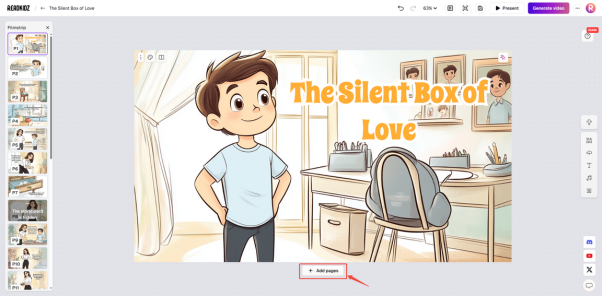
④ If you need to <mark style="color:purple;">**add a canvas**</mark>, you can click on the "<mark style="color:purple;">**+ Add pages**</mark>" below the canvas. The new canvas will only be added under the specified canvas, so please pay attention! (<mark style="color:red;">**Note: Whether you add a new canvas or the initial canvas, it cannot be deleted and can only be hidden!**</mark>)

<figure><img src="https://3477754308-files.gitbook.io/~/files/v0/b/gitbook-x-prod.appspot.com/o/spaces%2FzsZfoBvZYXkMl9uNhUAM%2Fuploads%2FJJoQH6rrrSii1tYKvwrE%2Fimage.png?alt=media&#x26;token=22ad3fac-0761-4bb8-9c74-513935c3c18e" alt=""><figcaption><p>ReadKidz Getting Started Tutorial</p></figcaption></figure>

If you are not satisfied with a page, you can use the hide function. Click the three dots in the upper left corner of the page, and then <mark style="color:purple;">**click the hide icon to hide the current page**</mark>!

<figure><img src="https://3477754308-files.gitbook.io/~/files/v0/b/gitbook-x-prod.appspot.com/o/spaces%2FzsZfoBvZYXkMl9uNhUAM%2Fuploads%2F6KR80JpXXx0KjOE213Md%2Fimage.png?alt=media&#x26;token=c384f26a-9ab9-488f-b8e6-2c21c32ec90c" alt=""><figcaption><p>ReadKidz Getting Started Tutorial</p></figcaption></figure>

If you want to cancel hiding, click the "<mark style="color:purple;">**show**</mark>" button on the hidden page and the page will be <mark style="color:purple;">**displayed again**</mark>!

<figure><img src="https://3477754308-files.gitbook.io/~/files/v0/b/gitbook-x-prod.appspot.com/o/spaces%2FzsZfoBvZYXkMl9uNhUAM%2Fuploads%2F00wq9BH3W5CvJb9W1lnx%2Fimage.png?alt=media&#x26;token=3da23ddb-e350-448a-b10e-0b8535ae8b2e" alt=""><figcaption><p>ReadKidz Getting Started Tutorial</p></figcaption></figure>

⑤ New blank pages can be selected to enter the AI drawing page by clicking the "<mark style="color:purple;">**Generate**</mark>" icon to manually <mark style="color:purple;">**write prompt words and generate images**</mark>! You can also click the "<mark style="color:purple;">**Upload**</mark>" button to <mark style="color:purple;">**upload images by yourself**</mark>. Of course, you can also click the image upload icon in the right toolbar to upload images!

<figure><img src="https://3477754308-files.gitbook.io/~/files/v0/b/gitbook-x-prod.appspot.com/o/spaces%2FzsZfoBvZYXkMl9uNhUAM%2Fuploads%2FE95CtlEoAqoNt5P0hbGA%2Fimage.png?alt=media&#x26;token=6739503d-53cd-44ee-803d-4bc0fe26b85e" alt=""><figcaption><p>ReadKidz Getting Started Tutorial</p></figcaption></figure>

⑥ If you want your story dialogue to be more interactive, you can click on the <mark style="color:purple;">**add subtitle icon**</mark> in the right-hand toolbar and <mark style="color:purple;">**select the appropriate font style to add**</mark>!

<figure><img src="https://3477754308-files.gitbook.io/~/files/v0/b/gitbook-x-prod.appspot.com/o/spaces%2FzsZfoBvZYXkMl9uNhUAM%2Fuploads%2F0GwyjNOG4HcwpkDjgz5q%2Fimage.png?alt=media&#x26;token=c492d0bc-2934-48e3-b0a4-e35e3d1cc9f4" alt=""><figcaption><p>ReadKidz Getting Started Tutorial</p></figcaption></figure>

⑦ To ensure the consistency and visual appeal of picture books, please remember to <mark style="color:purple;">**unify the subtitle font effect of the images**</mark>. Click on the subtitle, right-click the mouse, and select "<mark style="color:purple;">**Copy Style**</mark>" to <mark style="color:purple;">**unify the font effect of all subtitles except the cover and end pages**</mark>!

<figure><img src="https://3477754308-files.gitbook.io/~/files/v0/b/gitbook-x-prod.appspot.com/o/spaces%2FzsZfoBvZYXkMl9uNhUAM%2Fuploads%2F1pUi6gMsWFRWbL5M3AOK%2Fimage.png?alt=media&#x26;token=b6608e0f-e034-42a7-b6a8-afecf55c82e5" alt=""><figcaption><p>ReadKidz Getting Started Tutorial</p></figcaption></figure>

⑧ ReadKidz supports <mark style="color:purple;">**a variety of stickers**</mark>, bubble frames, and other diverse material libraries. Click the material library icon on the right toolbar, enter the material library, <mark style="color:purple;">**select materials that match the picture book style**</mark>, making the picture more interesting!

<figure><img src="https://3477754308-files.gitbook.io/~/files/v0/b/gitbook-x-prod.appspot.com/o/spaces%2FzsZfoBvZYXkMl9uNhUAM%2Fuploads%2Fzw7BzfflLoWk4uydJl21%2Fimage.png?alt=media&#x26;token=914675b2-4fe2-42ca-994e-6b5ba7c27a3b" alt=""><figcaption><p>ReadKidz Getting Started Tutorial</p></figcaption></figure>

⑨ After the picture layout design of the picture book is completed, we can <mark style="color:purple;">**dub each subtitle**</mark>. Just click the dubbing icon on the right toolbar to enter!

<figure><img src="https://3477754308-files.gitbook.io/~/files/v0/b/gitbook-x-prod.appspot.com/o/spaces%2FzsZfoBvZYXkMl9uNhUAM%2Fuploads%2FIYH6vgzkGQT0TbxL8iz3%2Fimage.png?alt=media&#x26;token=16aca9ee-42d2-4770-b7ba-ef879ec00107" alt=""><figcaption><p>ReadKidz Getting Started Tutorial</p></figcaption></figure>

⑩ Click on the "Change All Voice Actors" in the upper right corner to enter the "<mark style="color:purple;">**Voice Library**</mark>" for <mark style="color:purple;">**voiceover role listening and selection**</mark>!

<figure><img src="https://3477754308-files.gitbook.io/~/files/v0/b/gitbook-x-prod.appspot.com/o/spaces%2FzsZfoBvZYXkMl9uNhUAM%2Fuploads%2FZLHgWWeSr8agc4CgQW3b%2Fimage.png?alt=media&#x26;token=3e40eb5b-908e-4a36-baf9-d895cb7a1aed" alt=""><figcaption><p>ReadKidz Getting Started Tutorial</p></figcaption></figure>

<figure><img src="https://3477754308-files.gitbook.io/~/files/v0/b/gitbook-x-prod.appspot.com/o/spaces%2FzsZfoBvZYXkMl9uNhUAM%2Fuploads%2FAKB2igr749OHcG1fYTp0%2Fimage.png?alt=media&#x26;token=b68884f6-a9ee-45c1-bd7a-3077dba0bb40" alt=""><figcaption><p>ReadKidz Getting Started Tutorial</p></figcaption></figure>

⑪ You can click "<mark style="color:purple;">**change voice actor**</mark>" without checking the subtitles to directly enter the voice actor list, confirm the voice actor, and then you can <mark style="color:purple;">**unify all subtitles to use that voice actor**</mark>!

<figure><img src="https://3477754308-files.gitbook.io/~/files/v0/b/gitbook-x-prod.appspot.com/o/spaces%2FzsZfoBvZYXkMl9uNhUAM%2Fuploads%2FoRfAdkyFjm3dwUwun2dI%2Fimage.png?alt=media&#x26;token=7c554bc2-64de-434c-ad58-cbee5dd244e3" alt=""><figcaption><p>ReadKidz Getting Started Tutorial</p></figcaption></figure>

⑫ You can also <mark style="color:purple;">**check the subtitle**</mark>, enter the voiceover list, and <mark style="color:purple;">**voiceover the subtitle separately**</mark>!

<figure><img src="https://3477754308-files.gitbook.io/~/files/v0/b/gitbook-x-prod.appspot.com/o/spaces%2FzsZfoBvZYXkMl9uNhUAM%2Fuploads%2FPfaeKubGPw2iwOLlnHBu%2Fimage.png?alt=media&#x26;token=45c9aea9-dadb-4311-a575-77e50c67749c" alt=""><figcaption><p>ReadKidz Getting Started Tutorial</p></figcaption></figure>

⑬ <mark style="color:purple;">**Subtitle addition can also be voice narrated**</mark>, and you can drag the subtitle order in the voice narration list to <mark style="color:purple;">**adjust the reading order of subtitles on this page**</mark>!

<figure><img src="https://3477754308-files.gitbook.io/~/files/v0/b/gitbook-x-prod.appspot.com/o/spaces%2FzsZfoBvZYXkMl9uNhUAM%2Fuploads%2FSCfkaUM5SM9wR2qlYbiV%2Fimage.png?alt=media&#x26;token=79b6dafe-f167-4404-986b-224844d2188d" alt=""><figcaption><p>ReadKidz Getting Started Tutorial</p></figcaption></figure>

⑭ After the dubbing is completed, you can click on the background music library on the right and <mark style="color:purple;">**select appropriate background music**</mark> according to the content of the picture book story. You can listen to it by pressing the play button and <mark style="color:purple;">**click "+" to add**</mark> background music!

<figure><img src="https://3477754308-files.gitbook.io/~/files/v0/b/gitbook-x-prod.appspot.com/o/spaces%2FzsZfoBvZYXkMl9uNhUAM%2Fuploads%2FH4df9w0DSFDrKQVoKMPj%2Fimage.png?alt=media&#x26;token=8c71a90d-a320-458f-b460-df12ec129b16" alt=""><figcaption><p>ReadKidz Getting Started Tutorial</p></figcaption></figure>

⑮ After adding background music, you can click the background wall library in the right toolbar and <mark style="color:purple;">**select a background picture that matches the style of the picture book**</mark>, which can make the picture book preview more vivid and interesting!

<figure><img src="https://3477754308-files.gitbook.io/~/files/v0/b/gitbook-x-prod.appspot.com/o/spaces%2FzsZfoBvZYXkMl9uNhUAM%2Fuploads%2FIjYSs6O3ymS8WcoDqlwi%2Fimage.png?alt=media&#x26;token=13161659-1df3-4af6-8245-0443a25cc298" alt=""><figcaption><p>ReadKidz Getting Started Tutorial</p></figcaption></figure>

⑯ Save last, click preview, you can <mark style="color:purple;">**preview the overall effect of the picture book**</mark>, and adjust it again according to the places that are not satisfactory!

<figure><img src="https://3477754308-files.gitbook.io/~/files/v0/b/gitbook-x-prod.appspot.com/o/spaces%2FzsZfoBvZYXkMl9uNhUAM%2Fuploads%2F8Gssn14x7Db44L7YVtZn%2Fimage.png?alt=media&#x26;token=ece02209-86fe-44d2-8ed9-d6af77ec2108" alt=""><figcaption><p>ReadKidz Getting Started Tutorial</p></figcaption></figure>

<figure><img src="https://3477754308-files.gitbook.io/~/files/v0/b/gitbook-x-prod.appspot.com/o/spaces%2FzsZfoBvZYXkMl9uNhUAM%2Fuploads%2FRzzwjZgxxcwDbS1SHjCq%2Fimage.png?alt=media&#x26;token=f3dc4a24-77f6-49f1-abb4-6b6ac583be3b" alt=""><figcaption><p>ReadKidz Getting Started Tutorial</p></figcaption></figure>

⑰ The prepared picture books can be downloaded. Click the three dots in the upper right corner and <mark style="color:purple;">**select the download format you need to download**</mark>!

<figure><img src="https://3477754308-files.gitbook.io/~/files/v0/b/gitbook-x-prod.appspot.com/o/spaces%2FzsZfoBvZYXkMl9uNhUAM%2Fuploads%2Fosueou2PXpZJngXybTrN%2Fimage.png?alt=media&#x26;token=357b2d96-de36-42cd-bdd4-94643f39ee0a" alt=""><figcaption><p>ReadKidz Getting Started Tutorial</p></figcaption></figure>

⑱ If you need to convert picture books into video format, just click on "<mark style="color:purple;">**Generate Video**</mark>" in the upper right corner, and after creating the picture book according to the <mark style="color:purple;">**following two requirements**</mark>, you can generate the video!

<figure><img src="https://3477754308-files.gitbook.io/~/files/v0/b/gitbook-x-prod.appspot.com/o/spaces%2FzsZfoBvZYXkMl9uNhUAM%2Fuploads%2FPuzVrYw9LlvgmVdz0JWX%2Fimage.png?alt=media&#x26;token=6a2b171f-7b87-4e15-8552-0b7393593a0e" alt=""><figcaption><p>ReadKidz Getting Started Tutorial</p></figcaption></figure>