
ReadKidz Getting Started Tutorial
When using the Readkidz platform, how should one use AI to generate a complete children's picture book animation? **Step 1: Create a project** E-book Animation Entrance: ① Click on "E-book Animation" in the left navigation bar to enter the creation page.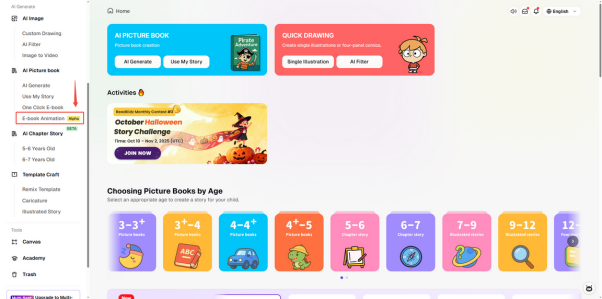
ReadKidz Getting Started Tutorial
**Step 2: Story Generation** 1、Set picture book parameters according to the content of the children's picture book you want to create: target age group, story type, story theme, story style, narrative perspective, and whether to use personification! (Note: The size of the picture book animation is limited to 16:9!)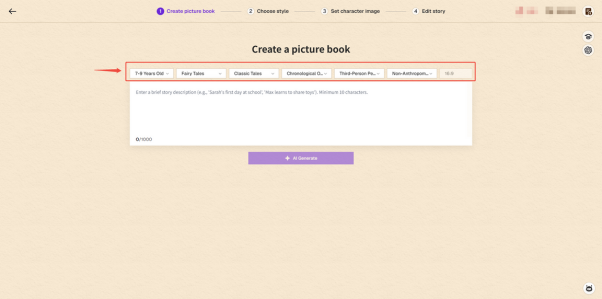
ReadKidz Getting Started Tutorial
2、Enter the story theme The following two methods can be used to input the story theme content: Method ① Enter the story theme directly in the text box and click the AI Generate button to generate the story.(Note: do not exceed the character limit of the text!)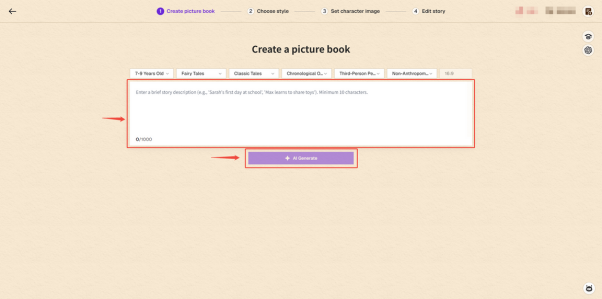
ReadKidz Getting Started Tutorial
Method ② Click to use the artificial intelligence assistant in the upper right corner and let it generate a story theme!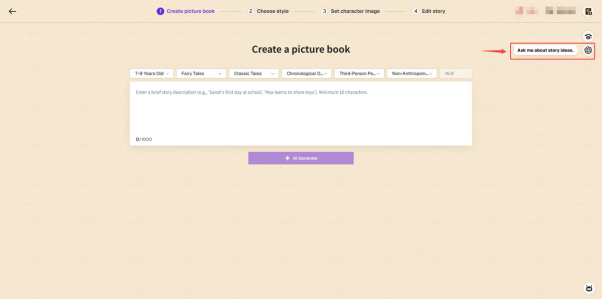
ReadKidz Getting Started Tutorial
Click on the dialog box, send the desired story type requirements to AI, select the story theme you want based on AI's reply, and copy and paste it into the text box!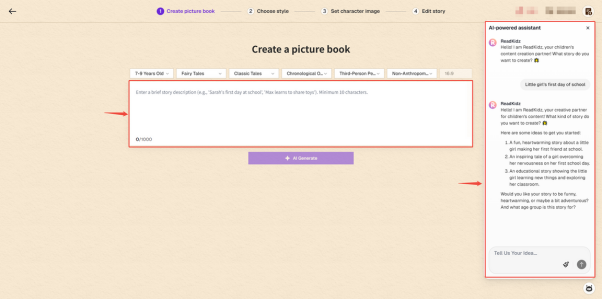
ReadKidz Getting Started Tutorial
**Step 3: Analyze the role** After the story generation is completed, enter the story section to review and check the original story text. If there are parts that are not quite satisfactory, you can directly edit and modify them. If you are not satisfied with the generated story, you can click the arrow to go back to the previous step and generate a new story again!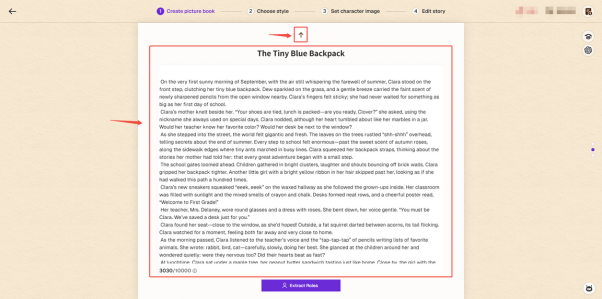
ReadKidz Getting Started Tutorial
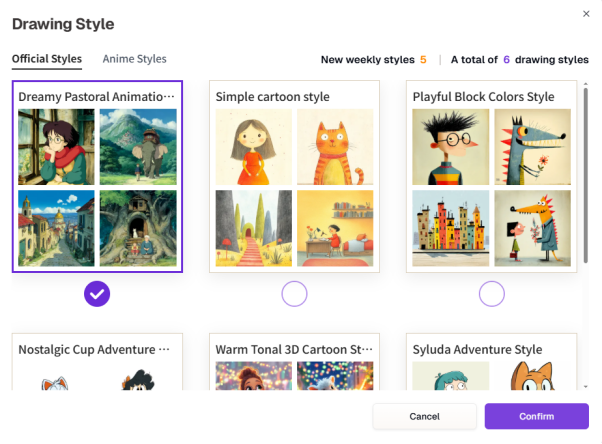
**Step 4: Choose a style** After confirming the role, you need to select a style. Art styles are divided into: Official styles and Anime Styles. Choose the desired style and proceed to the next step!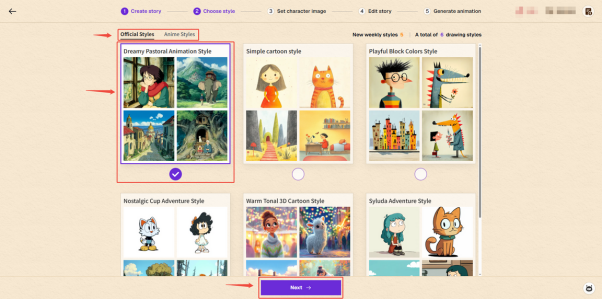
ReadKidz Getting Started Tutorial
**Step 5: Character Portrait** After confirming the style, it is necessary to create a character portrait! ① Check if there are any missing roles in the role list!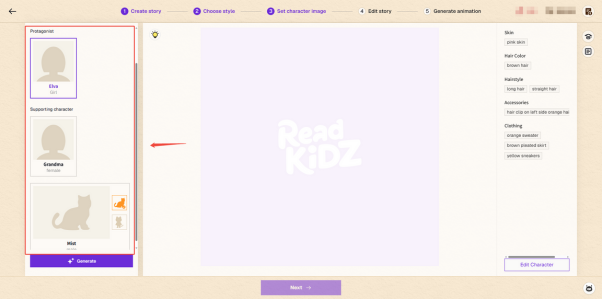
ReadKidz Getting Started Tutorial
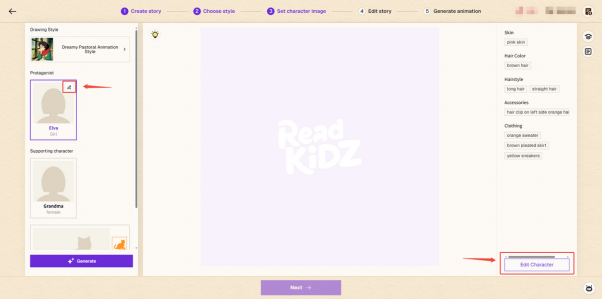
② Check the character information panel on the right! Click "Edit Character" below or the "small pencil" in the upper right corner of the character panel on the left to enter the character editing page!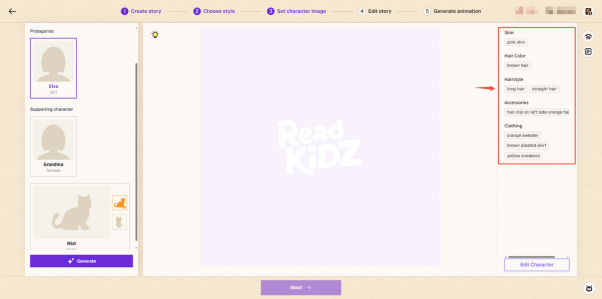
ReadKidz Getting Started Tutorial
ReadKidz Getting Started Tutorial
③ On the role information editing page, there will be corresponding role information based on the type of role. Please write the role information according to the following format!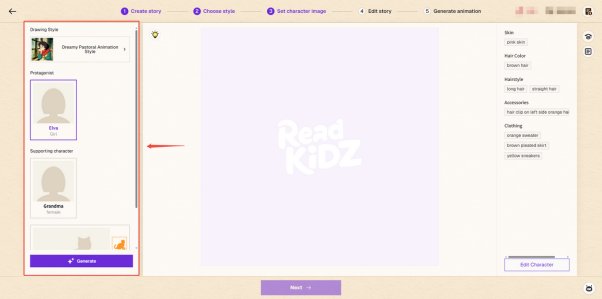
ReadKidz Getting Started Tutorial
Human: a. Character skin color (required) b. Character hairstyle (required) c. Character facial features (required) d. Character accessories (try not to fill in) e. Character clothing (required for human characters, not required for animal characters) Animal: a. Character skin color (required) b. Character facial features (required) ④ After entering the character editing page, you can manually modify the basic information of the character!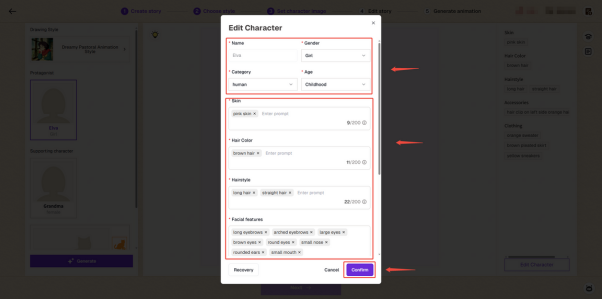
ReadKidz Getting Started Tutorial
For animal characters, you can manually modify their basic information and whether they are anthropomorphic! (Note: If the user is not satisfied with the previously created character data, they can temporarily modify whether it is anthropomorphic, change the costume, etc., save it first, and then manually generate the image.)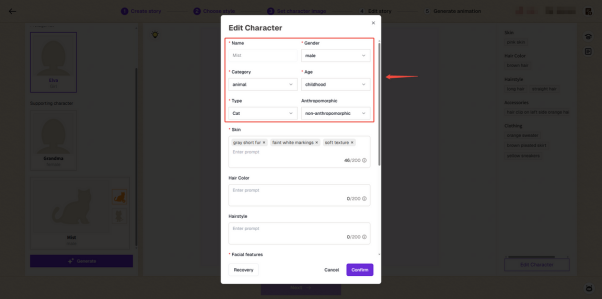
ReadKidz Getting Started Tutorial
After modifying the character information, you can directly make changes to the descriptive words. If you add new descriptive words, be sure to click the "Enter" key and add them within the specified character limit; otherwise, they will not take effect! After completing the modifications, remember to click "confirm" to save! (Note: After modifying whether an animal character is anthropomorphic, you must check the description of the animal character's clothing!)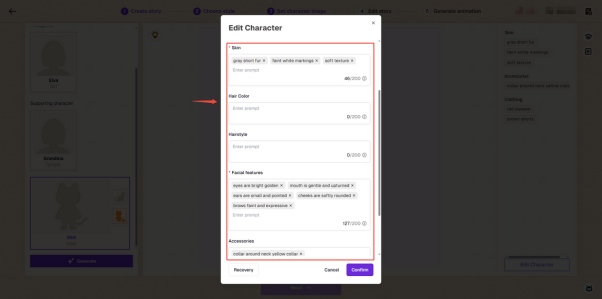
ReadKidz Getting Started Tutorial
⑤ 4 images will be generated simultaneously. Choose the one that best matches the prompt! (Note: After the image generation is completed, the first one will be selected by default. If the user wants to change the image, please click on the corresponding image!)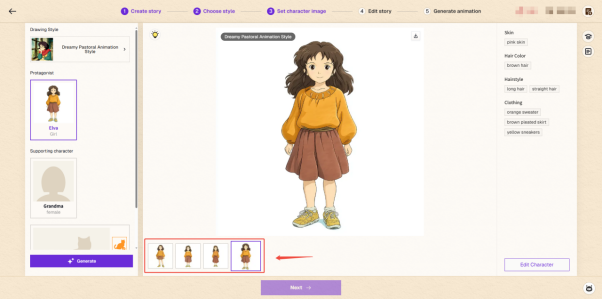
ReadKidz Getting Started Tutorial
Animal characters support the generation of both anthropomorphic and non-anthropomorphic character images! Animal characters are non-anthropomorphic: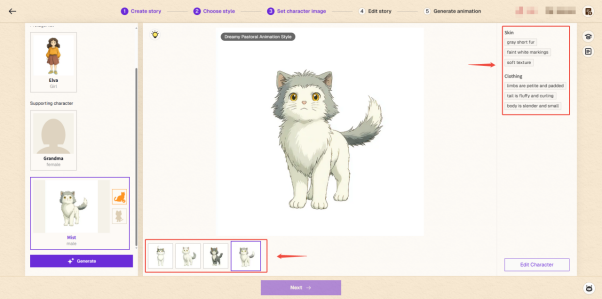
ReadKidz Getting Started Tutorial
Anthropomorphism of animal characters: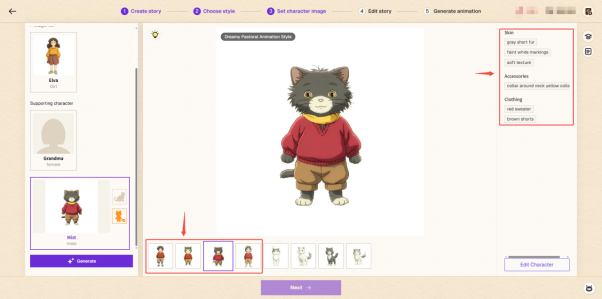
ReadKidz Getting Started Tutorial
Please note that each character must have a single character portrait; otherwise, the next step cannot proceed! ⑥ If you are not satisfied with the character portraits generated by the selected style, you can click on the style selection page to reselect a style! After confirming the style, please ensure that all characters' portraits are in the same style! Also, make sure that each character has a portrait before proceeding to the next step! (Please note that once you click to proceed to the next step, you will not be able to regenerate the character portraits!)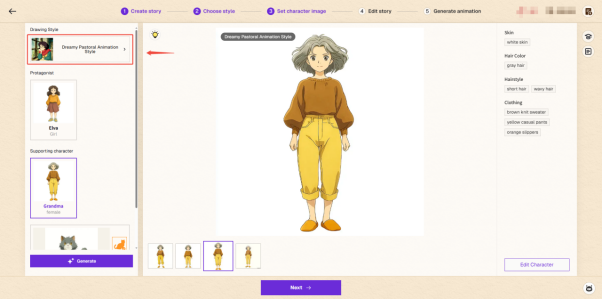
ReadKidz Getting Started Tutorial
ReadKidz Getting Started Tutorial
**Step 6: Edit the subtitles** On the picture book subtitle editing page, the system will write picture book subtitles in segments based on the original text content!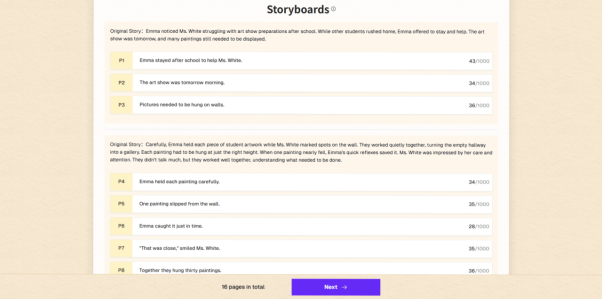
ReadKidz Getting Started Tutorial
When reviewing subtitles, you can freely edit, add, and delete them! ① Edit subtitles Just click on the corresponding subtitle to edit it!
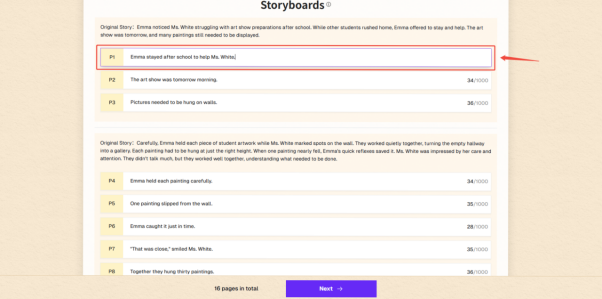
ReadKidz Getting Started Tutorial
② Added subtitles Hover your mouse over the position where you want to add subtitles, and a "+" will appear. Click the "+" to add a new subtitle!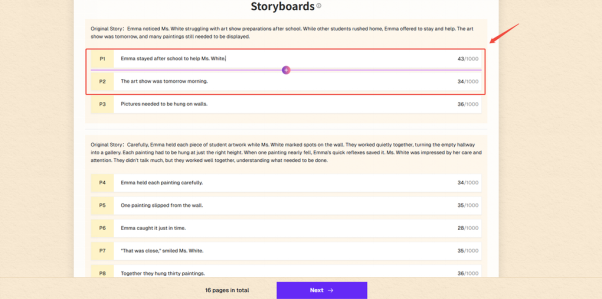
ReadKidz Getting Started Tutorial
③ Delete subtitles For subtitles that need to be deleted, hover the mouse over the corresponding subtitle, and a delete icon will appear at the end of the subtitle! (Please note: Once deleted by clicking, the subtitle cannot be recovered!)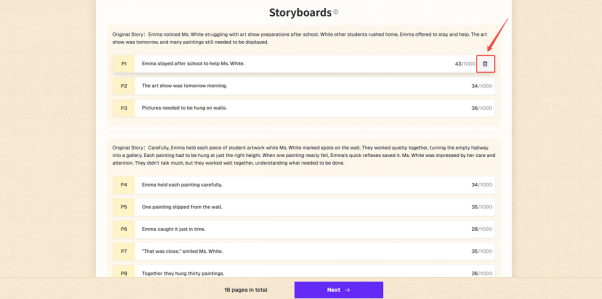
ReadKidz Getting Started Tutorial
Note: Please ensure all subtitles are correct before proceeding to the next step. Once you move to the next step, the subtitles cannot be modified again. **Step 7: Script page** ① Check whether the number of slide pages on the left reaches the number of pages specified by the subtitle count!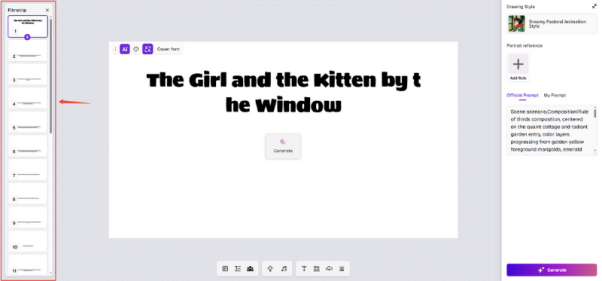
ReadKidz Getting Started Tutorial
② Check whether the characters that have appeared in the subtitles have corresponding character portraits!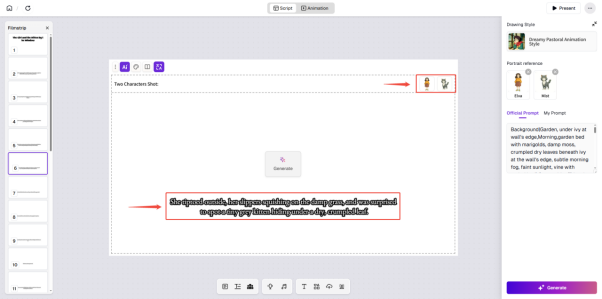
ReadKidz Getting Started Tutorial
③ Check the prompt editing section on the right!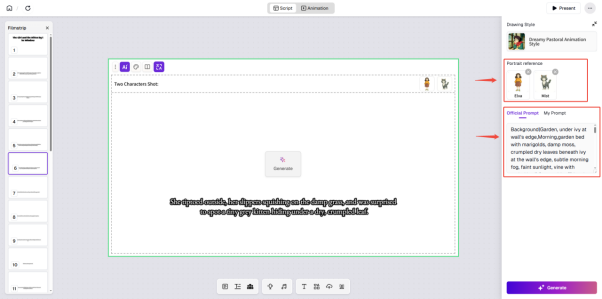
ReadKidz Getting Started Tutorial
You can also click "AI images" in the upper left corner of the canvas to enter the prompt editing page!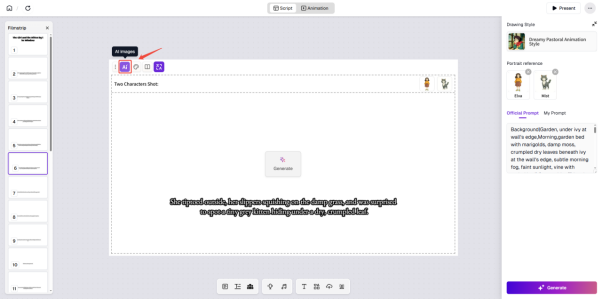
ReadKidz Getting Started Tutorial
④ Check whether the content of the prompt corresponds to the story subtitles, and whether the characters described in the prompt correspond to the character portraits!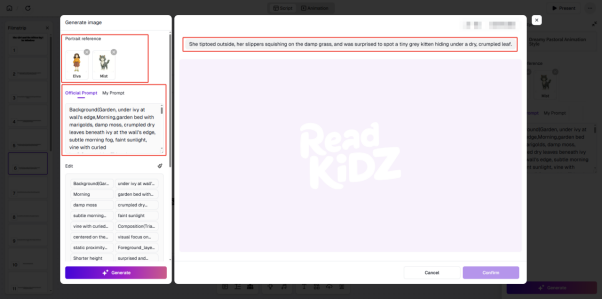
ReadKidz Getting Started Tutorial
Click "My Prompt", or you can write your own prompt! Enter a description for the image you want to generate, suggested format: \[Background description] \[Character action description] \[Character clothing description], \[Hair color description] \[Camera description]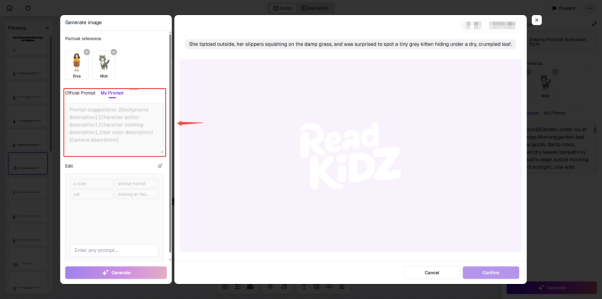
ReadKidz Getting Started Tutorial
When writing "My Prompt", you can delete or modify "Portrait reference"!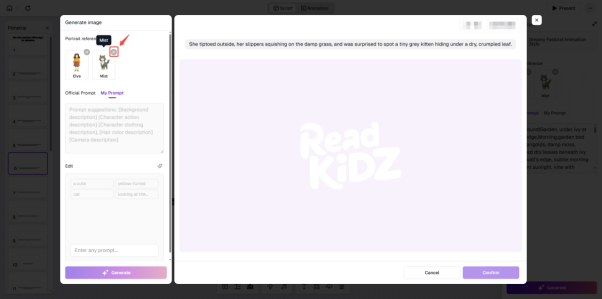
ReadKidz Getting Started Tutorial
⑤ After the review is completed, click "Generate" to generate a picture of the screen. If you are not satisfied with the generated picture, you can click "Generate" again to regenerate it, or enter the prompt editing page to adjust the drawing prompt! (Please note: When there is no prompt, clicking the generate button will enter the prompt page!)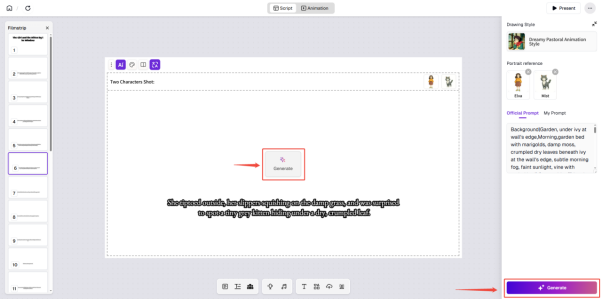
ReadKidz Getting Started Tutorial
⑥ The generated images will be displayed on the right side of the canvas. Users can select one of them. If no image is selected, the first image will be chosen by default!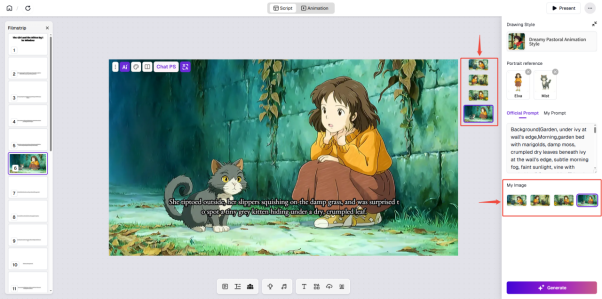
ReadKidz Getting Started Tutorial
Click "Apply to the canvas" to add the drawing to the canvas!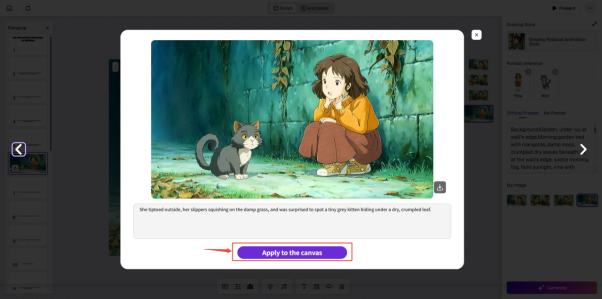
ReadKidz Getting Started Tutorial
**Step 8: Image Editing** The ReadKidz platform supports basic image editing functions, allowing direct layout design of picture books! When editing picture books, you can choose artistic fonts for the copy on the cover! (Note: This function currently only supports English picture books. Artistic fonts for other languages will be gradually improved in the future. Please stay tuned!)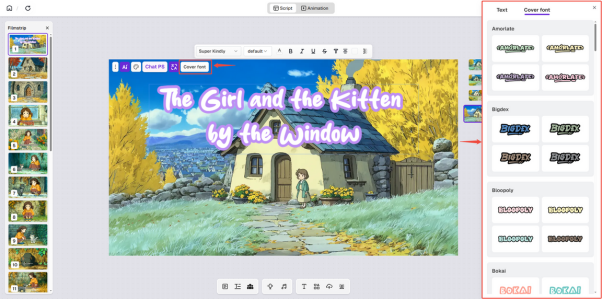
ReadKidz Getting Started Tutorial
Use the "ChatPS" function on the image editing page: help you efficiently adjust the details of images through natural language Example of use: Modify image details through colloquial descriptions: You can directly describe the adjustments you wish to make, and the system will quickly understand and make corresponding modifications.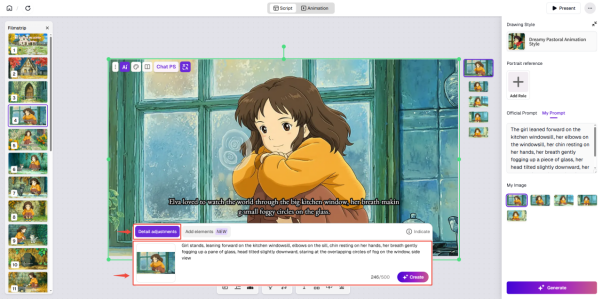
ReadKidz Getting Started Tutorial
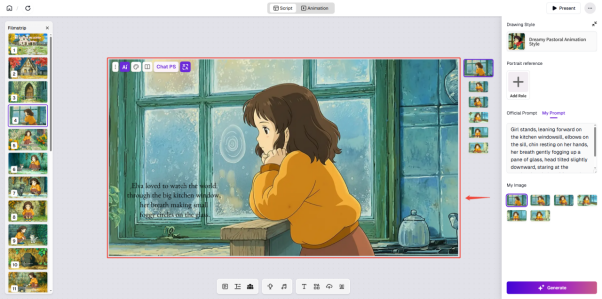
ReadKidz Getting Started Tutorial
Add characters to the picture through colloquial descriptions: just tell the system how you want to add the characters to the picture, and it will help you achieve it easily.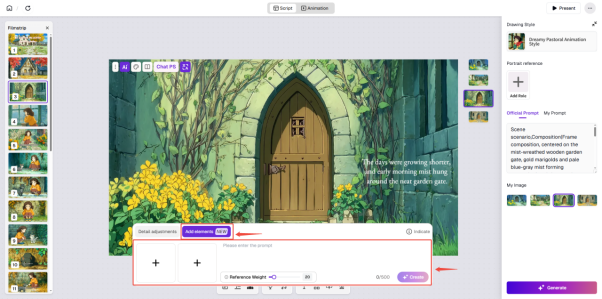
ReadKidz Getting Started Tutorial
You can choose to upload an image or select from historically generated images!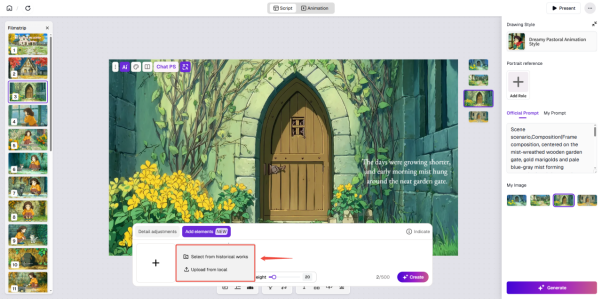
ReadKidz Getting Started Tutorial
The historically generated images are divided into Scene and Character!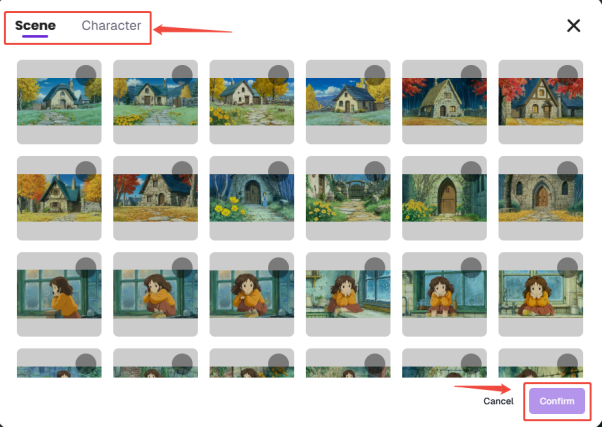
ReadKidz Getting Started Tutorial
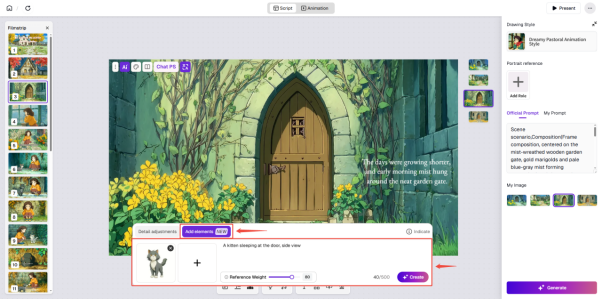
ReadKidz Getting Started Tutorial
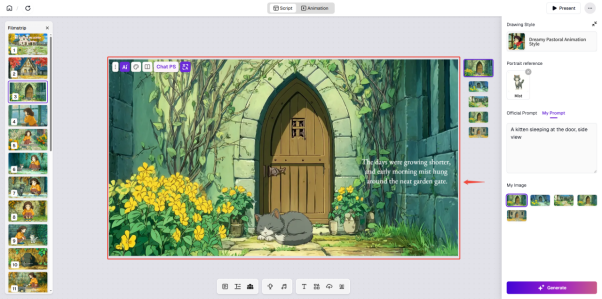
ReadKidz Getting Started Tutorial
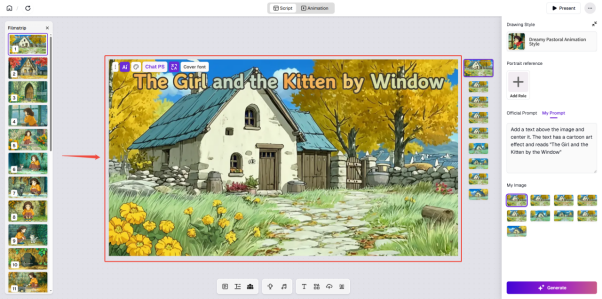
Optimize the display effect of your text through colloquial descriptions: perfectly integrate your words with pictures to enhance the expressiveness of the story! (Note: Currently, only English copy can be added; other languages will be supported in subsequent versions!)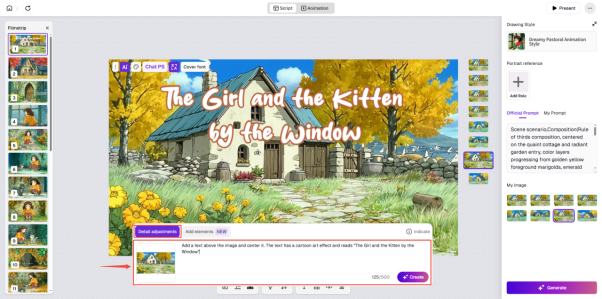
ReadKidz Getting Started Tutorial
ReadKidz Getting Started Tutorial
① Click on the picture, then click and long-press the green dots on the green border of the picture to adjust the position and size of the picture. Right-click on the picture and you can also perform corresponding operations according to the corresponding options!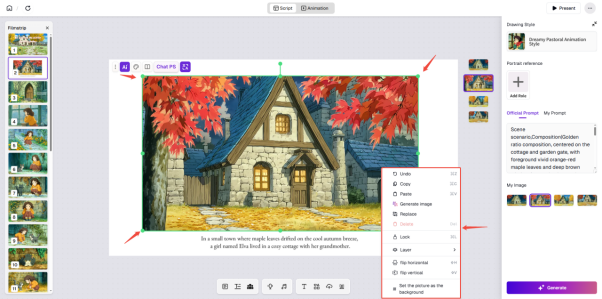
ReadKidz Getting Started Tutorial
② Click on the subtitle. Click and hold the green dots on the green border of the subtitle to adjust the position and size of the subtitle. Right-click on the subtitle and you can also perform corresponding operations according to the corresponding options!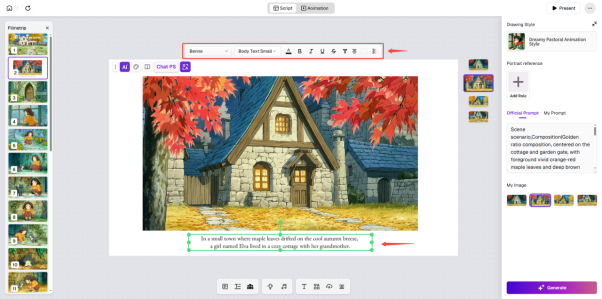
ReadKidz Getting Started Tutorial
Click the "Translate" button and select the target language.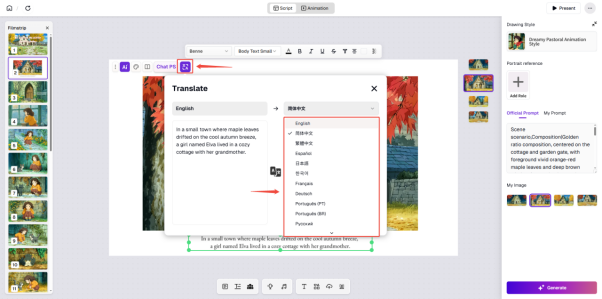
ReadKidz Getting Started Tutorial
Click the translate button, and the system will quickly generate the translated result.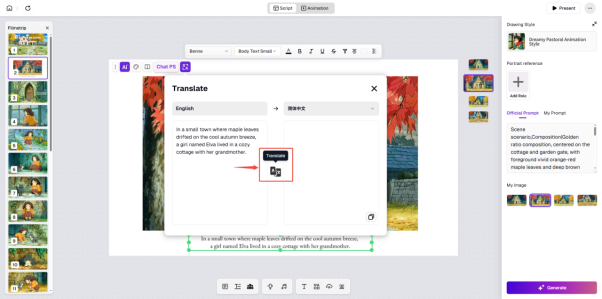
ReadKidz Getting Started Tutorial
Click the copy button to quickly copy the translation result to the clipboard!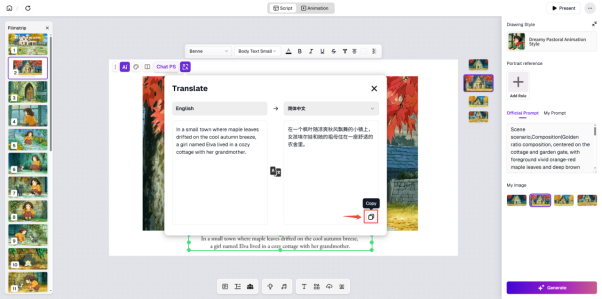
ReadKidz Getting Started Tutorial
Paste the translation result.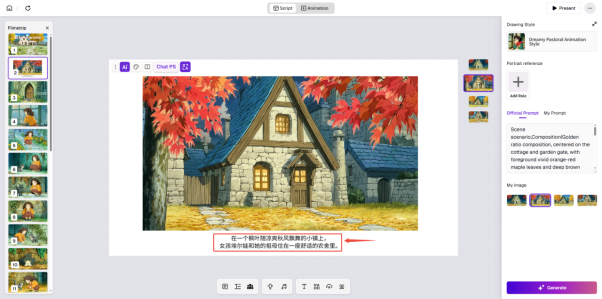
ReadKidz Getting Started Tutorial
③ If you are not satisfied with a certain page of the picture book, you can click the three small dots in the upper left corner of the canvas and then click the delete icon to remove it!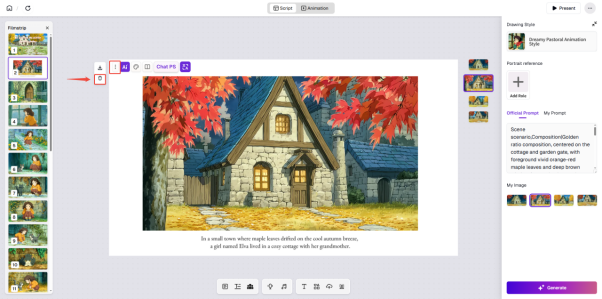
ReadKidz Getting Started Tutorial
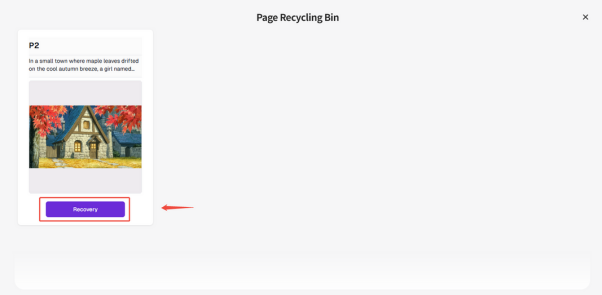
④ Click on the trash bin icon in the navigation bar to view the deleted pages. Click "Recovery" to restore the deleted pages.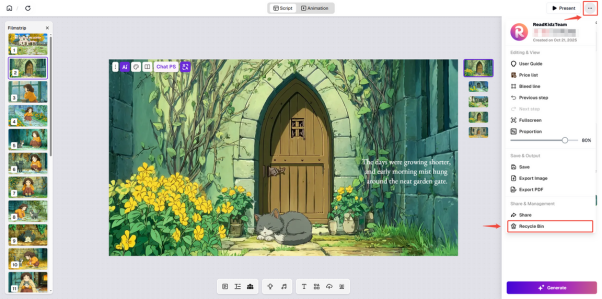
ReadKidz Getting Started Tutorial
ReadKidz Getting Started Tutorial
⑤ If you want to add subtitles, you can click the "Add Subtitle" icon in the toolbar below and select an appropriate font style to add them!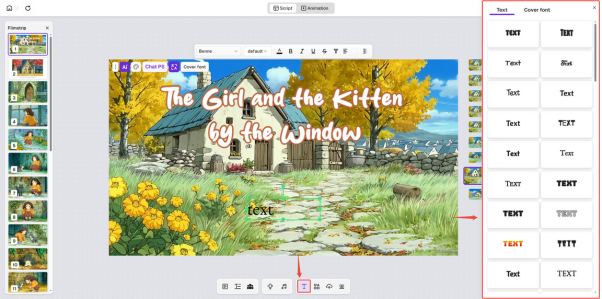
ReadKidz Getting Started Tutorial
⑥ To ensure the consistency and visual appeal of the picture book, please remember to unify the font effects of the subtitles in the images. Click on a subtitle, right-click the mouse, and select "Apply the formatting to all pages" to standardize the font effects of all subtitles except those on the cover and the back cover!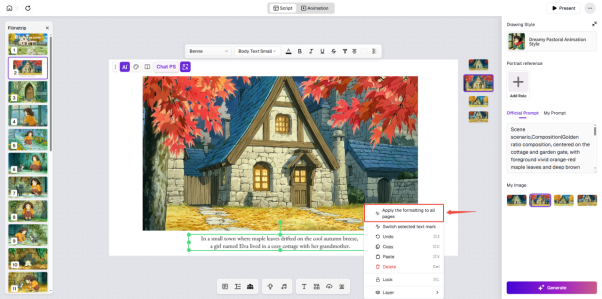
ReadKidz Getting Started Tutorial
⑦ ReadKidz supports a diverse material library including various styles of stickers, speech bubbles, etc. Click on the material library icon in the toolbar below to enter the material library, and select materials that match the style of the picture book's illustrations. This can make the pictures more interesting!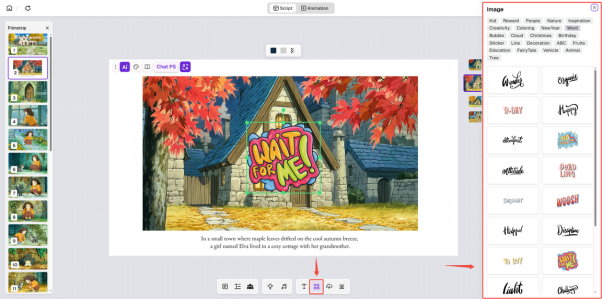
ReadKidz Getting Started Tutorial
⑧ After the layout design of the picture book's illustrations is completed, you can dub each subtitle. Just click "Audio" in the toolbar below to enter!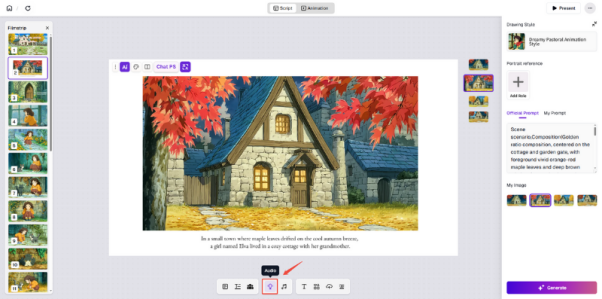
ReadKidz Getting Started Tutorial
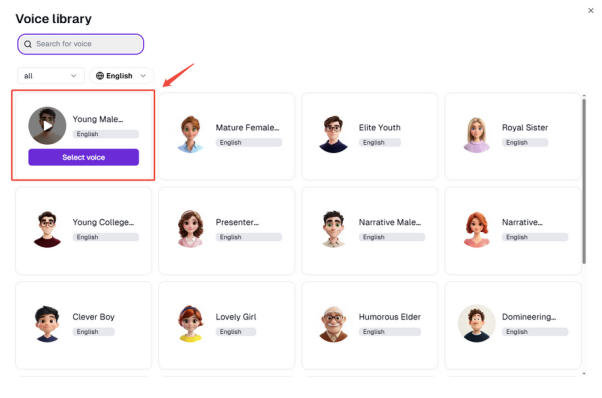
⑨ Click on "change all voice actors" in the upper right corner to enter the "voice library" where you can audition and select dubbing roles!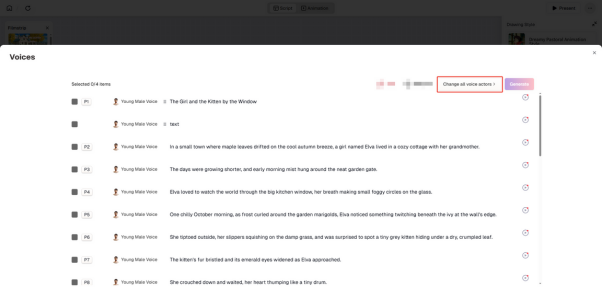
ReadKidz Getting Started Tutorial
ReadKidz Getting Started Tutorial
⑩ You can uncheck the subtitles, click "change voice actor" to directly enter the list of dubbing roles, select a dubbing role, and then all subtitles will be dubbed by this role uniformly!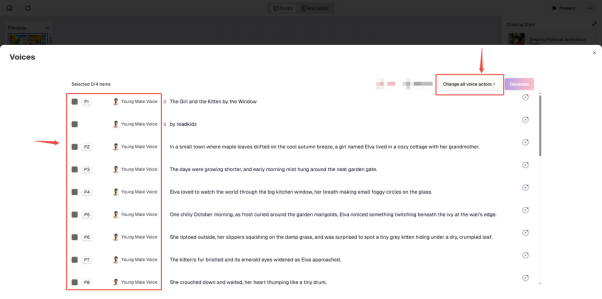
ReadKidz Getting Started Tutorial
⑪ You can also check the subtitle, enter the dubbing list, and dub that subtitle individually!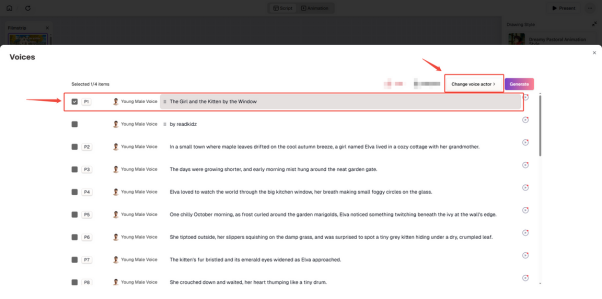
ReadKidz Getting Started Tutorial
⑫ Newly added subtitles can also be dubbed, and you can drag the order of the subtitles in the dubbing list to adjust the reading order of the subtitles on this page!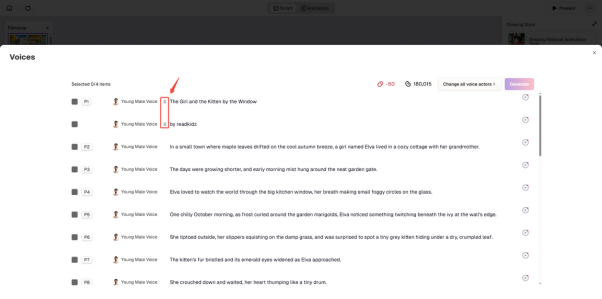
ReadKidz Getting Started Tutorial
⑬ After the dubbing is completed, you can click the background music library below, select appropriate background music according to the content of the picture book story. The play button allows you to preview, and the "+" sign is for adding background music!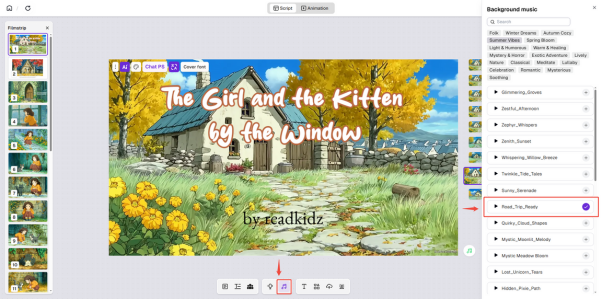
ReadKidz Getting Started Tutorial
⑭ After adding background music, you can click on the background wall library in the toolbar below and select a background image that matches the style of the picture book, which can make the preview of the picture book more vivid and interesting!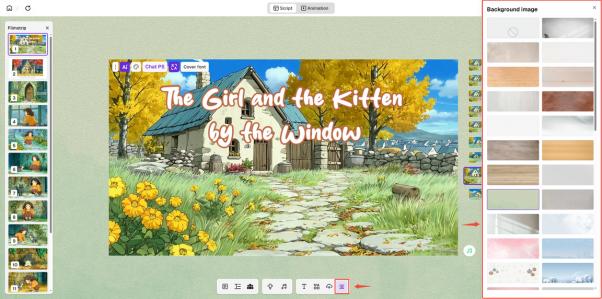
ReadKidz Getting Started Tutorial
⑮ Click on preview to view the overall effect of the picture book, and then make adjustments according to the parts you are not satisfied with!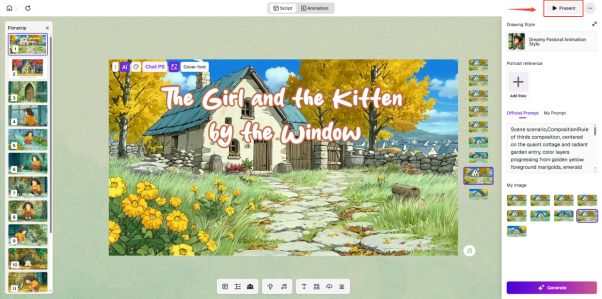
ReadKidz Getting Started Tutorial
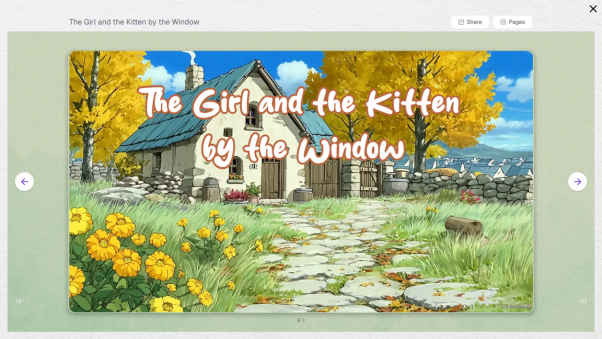
ReadKidz Getting Started Tutorial
Two-page preview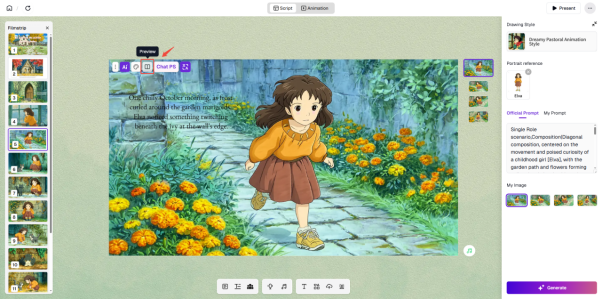
ReadKidz Getting Started Tutorial
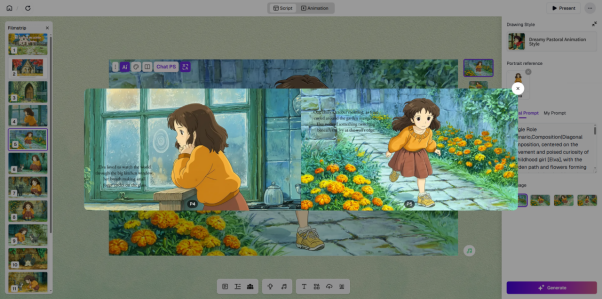
ReadKidz Getting Started Tutorial
⑯ The completed picture books can be downloaded. Click the three dots in the upper right corner and select the desired download format to download!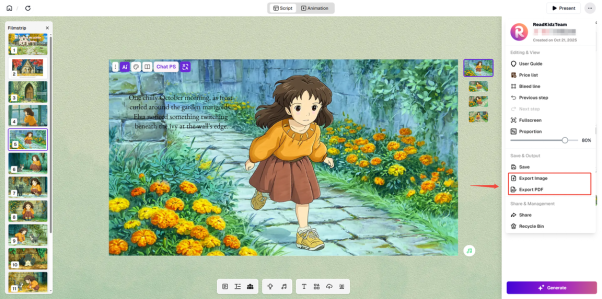
ReadKidz Getting Started Tutorial
**Step 9: Animation Page Editing** ① Click "Animation" to enter the "Storyboard" interface!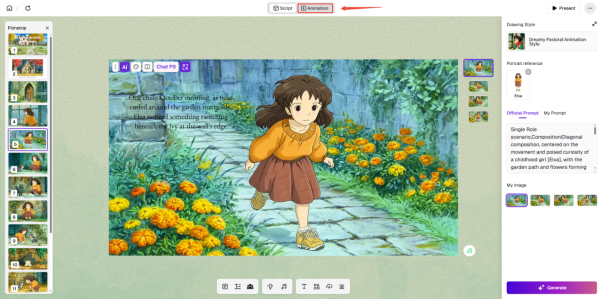
ReadKidz Getting Started Tutorial
② Check if the animated image corresponds to the prompt!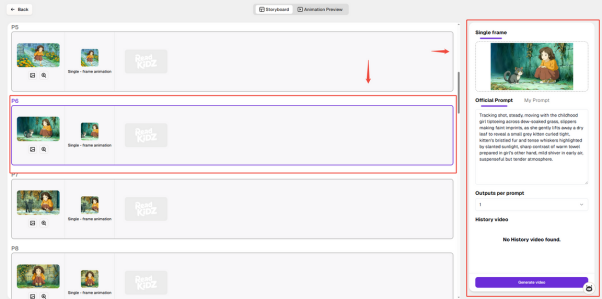
ReadKidz Getting Started Tutorial
③ Click "Replace Filmstrip" to switch the images of the animation frames!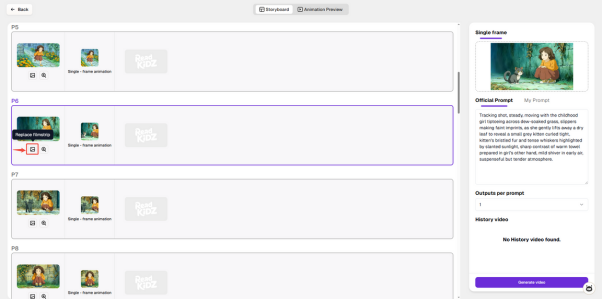
ReadKidz Getting Started Tutorial
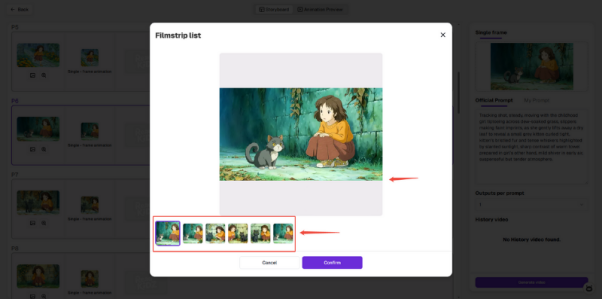
ReadKidz Getting Started Tutorial
④ Click "Outputs per prompt" to select the number of videos to generate!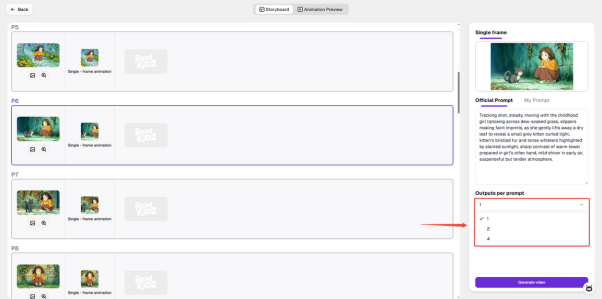
ReadKidz Getting Started Tutorial
You can also write your own prompts!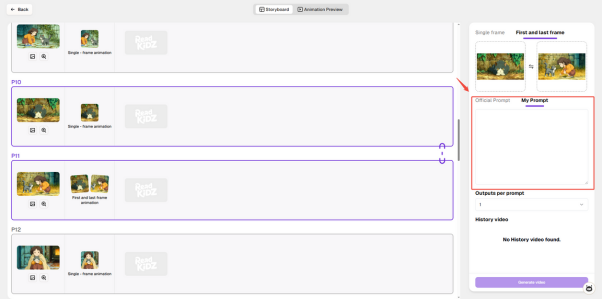
ReadKidz Getting Started Tutorial
⑤ After confirming that everything is correct, click "Generate Video"! Generate a video of about five seconds!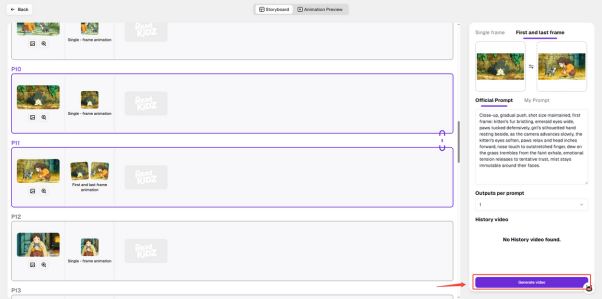
ReadKidz Getting Started Tutorial
⑥ After generating at least two videos, you can click "Animation Preview" to enter the video synthesis page!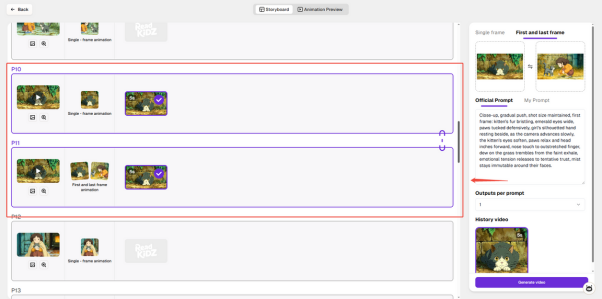
ReadKidz Getting Started Tutorial
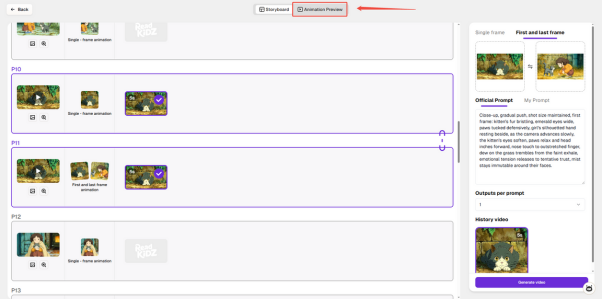
ReadKidz Getting Started Tutorial
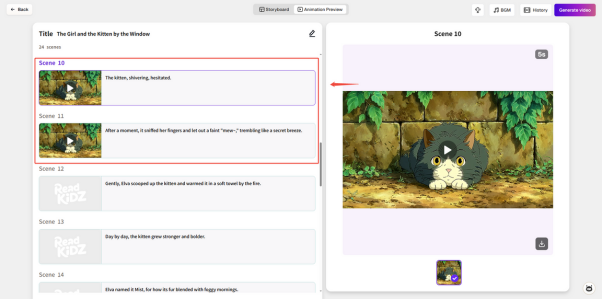
⑦ Check the text of the animation video on the left! You can modify the title and subtitles by yourself!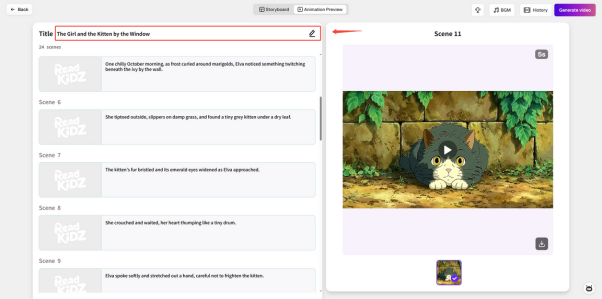
ReadKidz Getting Started Tutorial
ReadKidz Getting Started Tutorial
⑧ Click the bottom right corner of the "Scene" column on the right to download the video!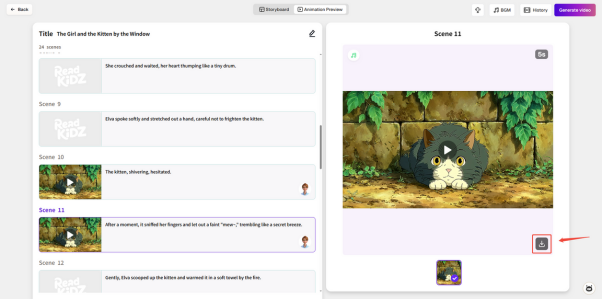
ReadKidz Getting Started Tutorial
⑨ Click on "Audio" in the upper right corner of the page to enter the animation dubbing interface!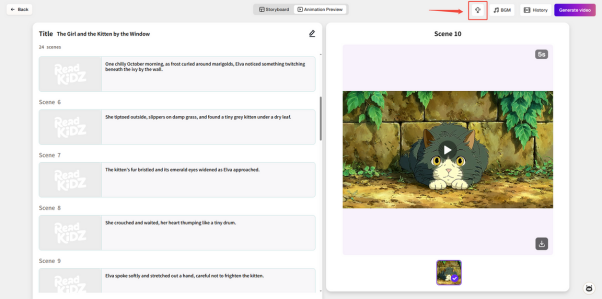
ReadKidz Getting Started Tutorial
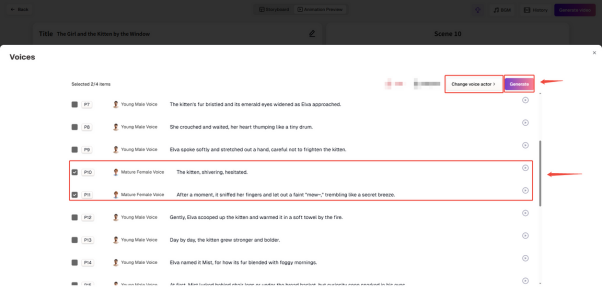
ReadKidz Getting Started Tutorial
The bottom right corner of the text will show whether there is dubbing and the dubbing character!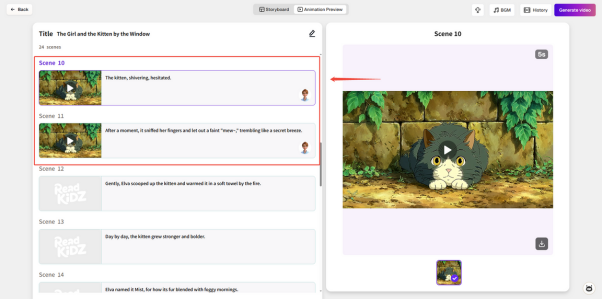
ReadKidz Getting Started Tutorial
⑩ Click "Background Music" to add BGM to the animation!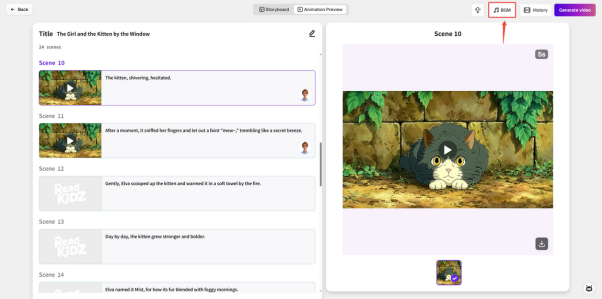
ReadKidz Getting Started Tutorial
⑪ Click "Generate Video"!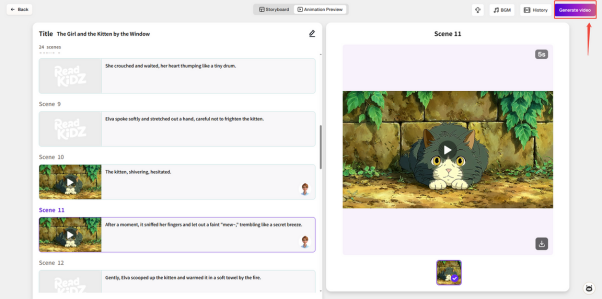
ReadKidz Getting Started Tutorial
⑫ Select the videos you need to merge!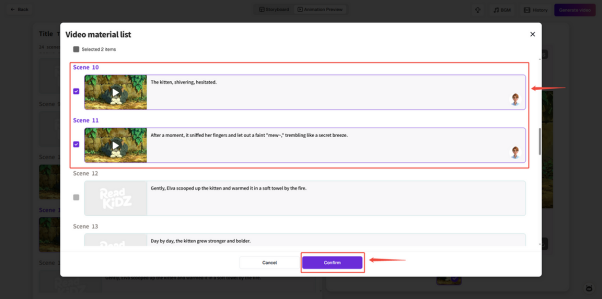
ReadKidz Getting Started Tutorial
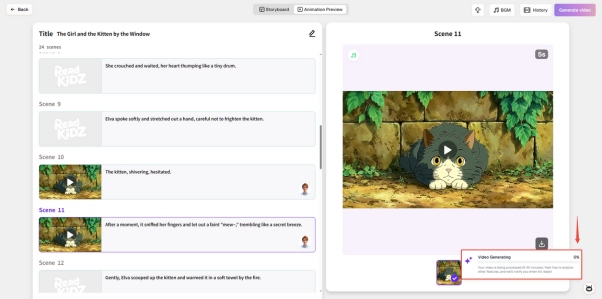
ReadKidz Getting Started Tutorial
⑬ Click on "History" in the upper right corner to view the video generation records!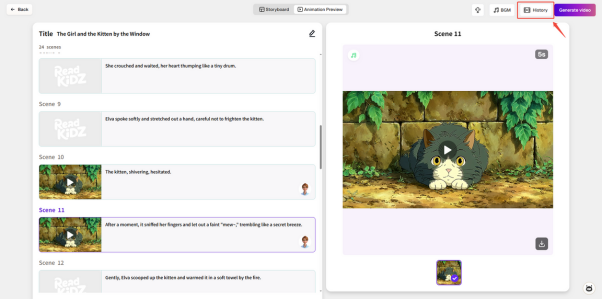
ReadKidz Getting Started Tutorial
⑭ Click the bottom right corner to download the video!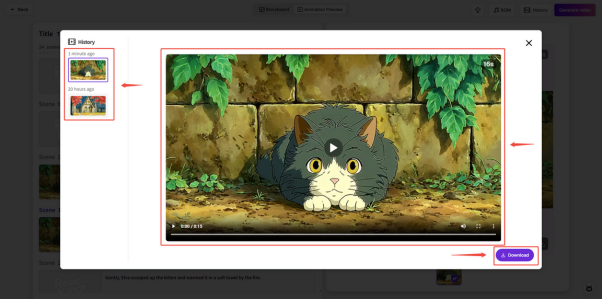
ReadKidz Getting Started Tutorial